Access options
Password-protect, schedule, or token-gate a form, and keep bots out.
Select Access in the builder's left menu to choose who can fill in your form:
- Public: anyone with the link (the default).
- Password protected (Pro): respondents enter a password you set before they see the form.
- Scheduled (Pro): the form opens and closes at the dates and times you pick. Leave either empty to skip that limit.
- On-chain gate (Business): only wallets that pass your checks can continue.
A form uses one access type at a time.
Set up an on-chain gate
Plan: Business
- Open Lookups in the left menu and add a check: an NFT or token contract, an ENS name, or a minimum native balance. Lookups work across EVM chains and on Solana, Sui, Aptos, TON, Starknet, NEAR and Cosmos.
- Open Access, choose On-chain gate, and add your lookups as conditions.
- Choose All must pass or Any one passes. For example, add two NFT collections and pick Any one passes to accept holders of either.
- Optionally write a gate message, like "This form is for DAO members only."
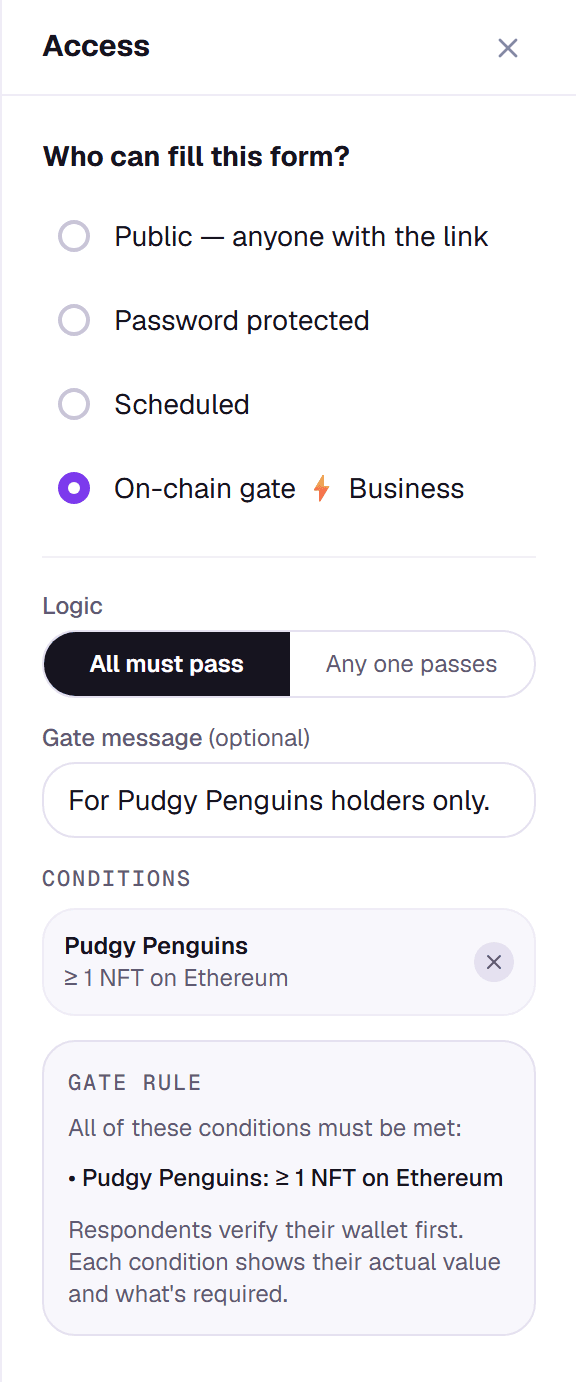
Respondents connect a wallet and see which conditions they meet before they can go on. If you try to publish with the gate on but no conditions set, Formz warns you, because the form would otherwise be open to everyone.
Keep bots out
Under Settings → Bot prevention, on every plan:
- reCAPTCHA runs invisibly on submit and only shows a challenge to suspicious traffic.
- Honeypot field adds a hidden field that catches automated bots.
- IP address collection records respondents' IP addresses to help you spot duplicates.