Getting started with Formz
Create, publish and share your first form in a few minutes.
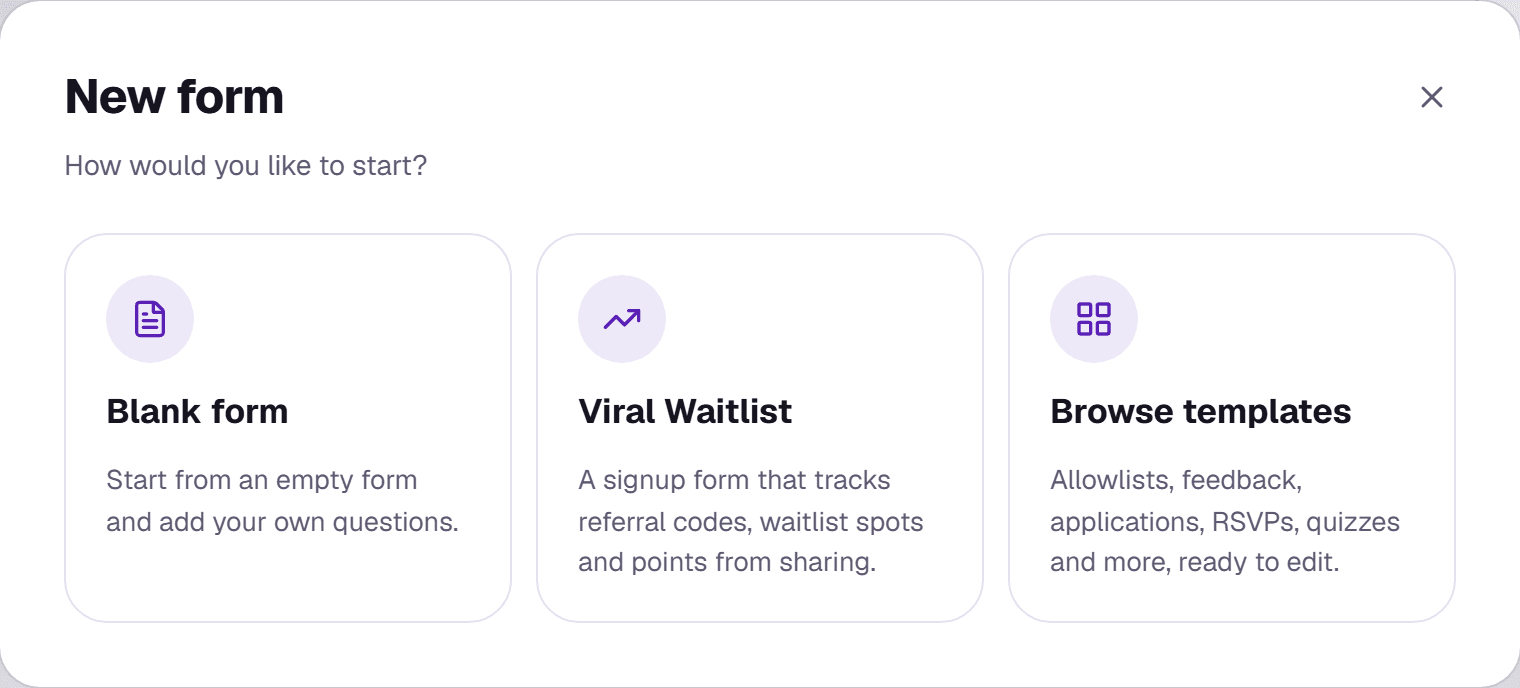
Every form starts from your dashboard. Click New form and choose how to begin:
- Blank form opens the builder with an empty form.
- Viral Waitlist (Business) creates a signup form with referral links, waitlist spots and points. See Viral Waitlist setup.
- Browse templates opens the template page, with ready-made forms for allowlists, feedback, applications, RSVPs, quizzes and more. See Form types & templates.
Find your way around the builder
The builder has three areas. The menu on the left moves between the parts of your form: Cover page, Form and Success page under Design; Lookups, Access and Settings under Configure; and Responses and Analytics under Data. The middle shows your form as respondents will see it. The panel on the right holds the options for whatever you're working on.
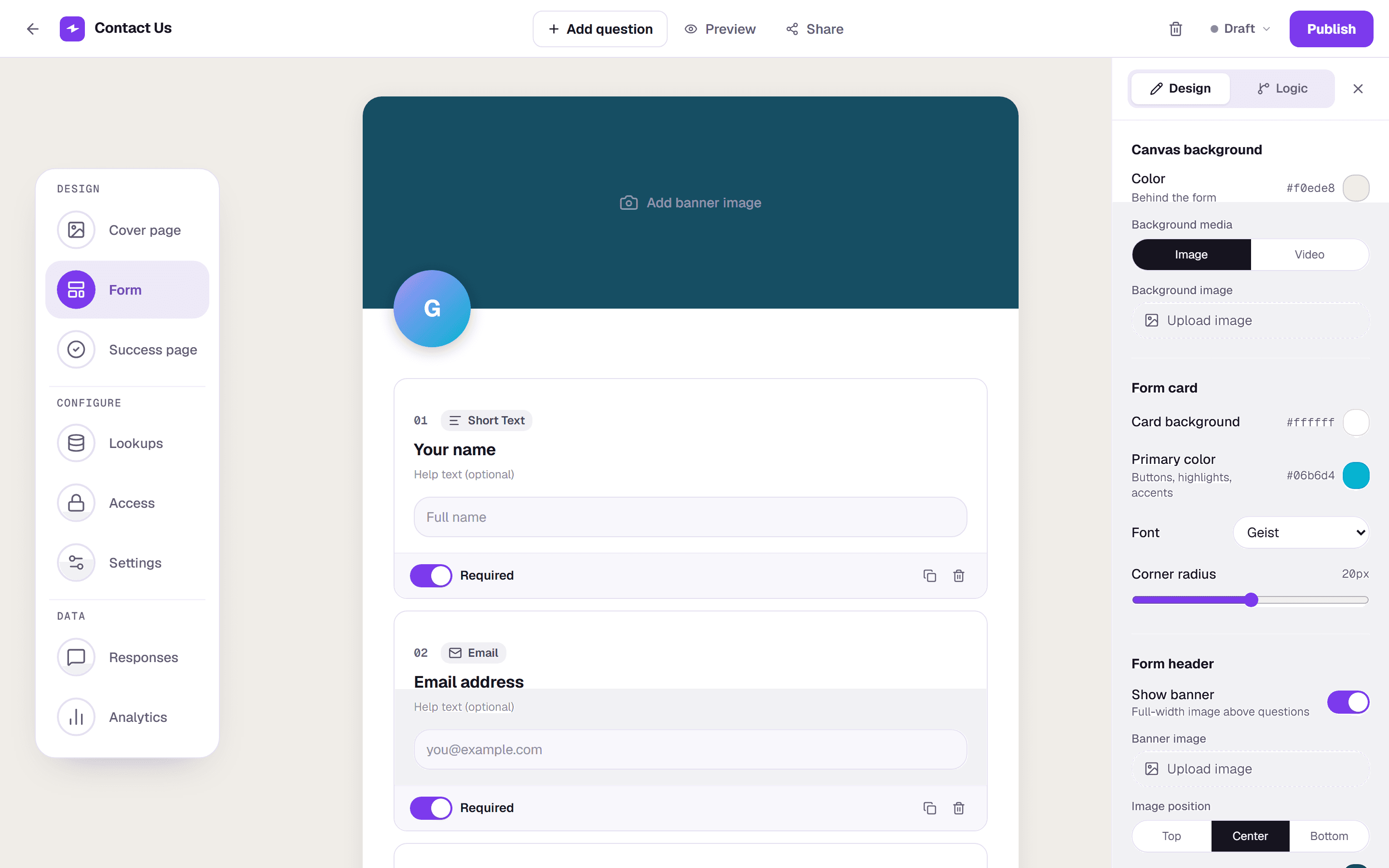
Click Add question in the top bar to add a question (see Question types), then click any question to edit its wording. Your work saves automatically; the top bar shows SAVED once it has.
Preview and publish
Preview opens the form exactly as a respondent sees it. When you're ready for responses, click Publish in the top right. The form goes live and the Share button gives you its link, QR code and embed code (see Sharing & publishing). The status menu next to it lets you pause a live form or take it offline later.
The free Starter plan includes 3 forms. If you've reached your plan's limit, New form offers an upgrade instead. See Billing & plans.